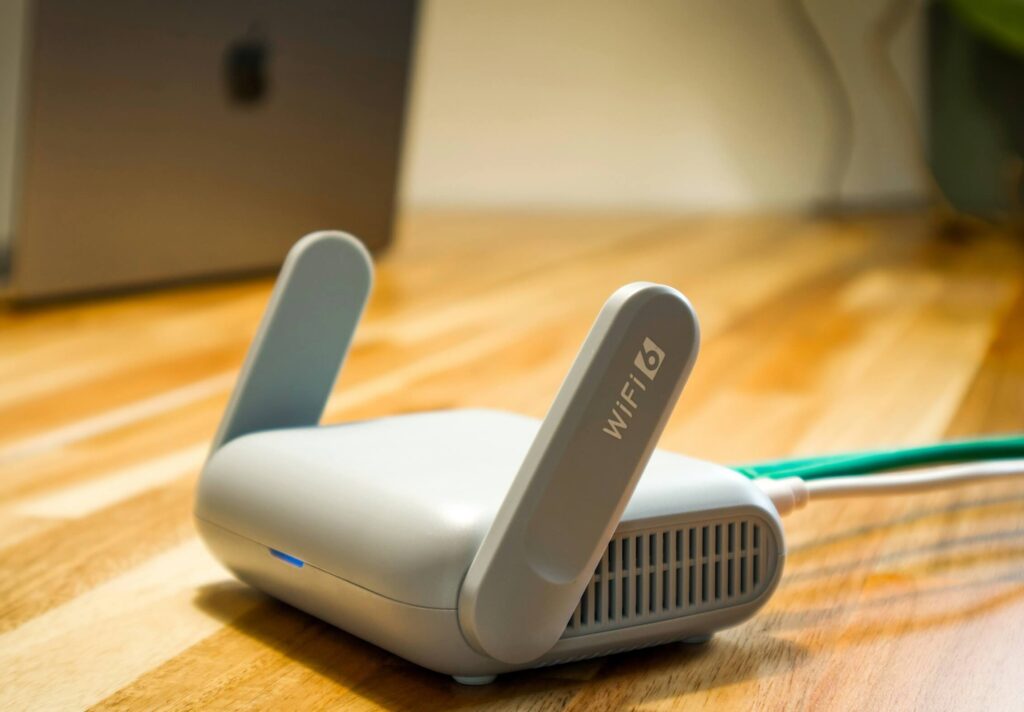
Full bars in the living room, none in the bedroom two walls away — most of the fix costs nothing and takes an afternoon.
netdaemons.com · Home & SMB Series · Article #17 · 7 August 2026

Your phone shows full signal in the living room. Walk into the bedroom — two walls and maybe five metres away — and it drops to one bar, if it shows up at all. The video call freezes right when your relative starts talking. The smart TV in that room buffers no matter how many times you restart the router.
This is rarely a bad router and rarely your ISP’s fault either. In Indian apartment buildings, dead zones are usually a mix of thick concrete construction, poor router placement, and Wi-Fi congestion from every other flat on your floor running its own network. In most cases, the fix costs nothing and needs no new hardware — work through Before You Do Anything below before spending on anything.
| Disclaimer: General: The NetDaemons team has researched and tested the steps in this guide at time of writing. Router interfaces change with firmware updates, so menu names and locations may differ slightly from what is described here. Readers should also confirm with their own ISP if a specific setting appears to be locked or hidden, since some ISP-supplied routers restrict certain wireless settings by default. Pricing: Product prices mentioned below are indicative Amazon India street prices, not guaranteed selling prices. Availability: Product availability is indicative and may change. Verdicts: Recommendations reflect the independent technical opinion of the NetDaemons team. This article contains affiliate links — if you purchase through these links, NetDaemons may earn a commission at no extra cost to you. |
Before You Do Anything
Not every weak-signal complaint is a true dead zone. Answer these three questions honestly first.
- Is it one specific room, or is your Wi-Fi weak everywhere? If speed is poor even standing next to the router, this guide will not fix that. The problem is upstream, likely your ISP connection or the router itself, not coverage.
- How far is the dead zone, and how many walls sit between it and the router? A bedroom two rooms away with two concrete walls in between behaves very differently from a balcony twenty feet away with a clear line of sight.
- Have you checked how many Wi-Fi networks show up in that room? Open Wi-Fi settings on your phone and count the visible networks. In a dense Indian apartment block, seeing twenty, forty, even eighty networks from neighbouring flats is normal, and that congestion matters as much as distance.
What Is Actually Causing This
Two separate problems usually combine to create a dead zone, and it helps to know which one you are dealing with.
The first is physical. Most Indian apartment construction uses reinforced cement concrete (RCC) — concrete poured around a steel rebar grid. That grid behaves like a rough Faraday cage (a conductive mesh that blocks radio signal), absorbing and reflecting radio signal, especially in the 5 GHz band, far more aggressively than the brick or drywall construction common in Western housing. A wall that barely dents Wi-Fi signal in a typical US suburb can cut it by half or more in an Indian RCC building.
The second is congestion, not distance. The 2.4 GHz band has only three non-overlapping channels (frequency slices that don’t interfere with each other) in most countries: 1, 6, and 11. In a building with fifty apartments running Auto channel selection, dozens of networks crowd onto the same three channels. The result is not a weak signal so much as constant collisions — your devices fighting for airtime with a neighbour’s smart plug, doorbell camera, and three phones.
A smaller third factor: heat. Ambient temperatures of 35–42°C are routine across India for months at a time, and a router sealed inside a closed TV console runs hotter still. Consumer routers throttle or intermittently reboot under sustained heat — a pattern that looks like a coverage problem but is really thermal.
| From the field — A pattern we consistently see in dense Indian apartment audits: the router the ISP installs is rarely the problem on paper, but auto channel selection combined with fifty overlapping neighbour networks turns a perfectly capable router into an unreliable one within weeks of installation. |
The Fix
Work through these in order. Most dead zones resolve in the first three steps, before you touch a single setting.
Group 1: Confirm What You Are Actually Dealing With
Step 1: Install a Wi-Fi analyser app and walk the affected room
What to do: Install a free Wi-Fi analyser app — NetSpot or Wi-Fi Analyzer both work well on Android. On iPhone, Apple restricts direct signal readouts, so use the Fing app to at least confirm connection quality in the room. Stand in the dead zone and note the signal strength, which channel your router is using, and how many neighbouring networks share that channel.
Why it matters: This tells you whether you are fighting distance, congestion, or both, and the rest of this guide changes depending on the answer.
What to expect: A signal reading in the weak or poor range, and in most Indian apartment buildings, a channel shared by ten or more other networks.
Group 2: Get the Router Out of the Cabinet
Step 2: Relocate the router to an open, central, elevated spot
What to do: Move the router out of any enclosed TV unit or cupboard. Place it on an open shelf, roughly chest height, as close to the centre of the apartment as your ISP cabling allows.
Why it matters: A closed cabinet blocks signal with wood or metal panelling and traps heat, which matters more in Indian summers than most people assume for a device running continuously.
What to expect: A noticeable improvement in nearby rooms, and a router that feels cooler to the touch after a day.
Group 3: Fix Channel Congestion Manually
Step 3: Set the 2.4 GHz channel manually instead of Auto
What to do: Log into your router’s admin page — 192.168.29.1 for Jio Fiber, 192.168.1.1 for Airtel Xstream/ACT Fibernet, 192.168.0.1 for some BSNL FTTH units — and find Wireless or Wi-Fi Settings. Change the 2.4 GHz channel from Auto to whichever of 1, 6, or 11 showed least congestion in Step 1.
Why it matters: Auto channel selection on most consumer routers only re-scans occasionally, sometimes only at boot, so your router can stay parked on a crowded channel for weeks in a dense building.
What to expect: Fewer dropped connections and stalls during video calls, even in rooms where the raw signal bar count does not change much.
Group 4: Reposition and Reorient
Step 4: Adjust antenna angle and avoid signal-blocking materials nearby
What to do: If your router has external antennas, angle one vertically and one horizontally rather than both the same way. Keep it away from mirrors, metal cupboards, and aquariums — all reflect or absorb Wi-Fi signal more than people expect.
Why it matters: Antenna orientation affects which direction signal radiates most strongly, and nearby metal surfaces can create dead spots even close to the router.
What to expect: A modest improvement in rooms adjacent to the router. This step rarely fixes a genuinely distant dead zone on its own.
Group 5: Force the Far Room onto 2.4 GHz
Step 5: Manually connect devices in the dead zone to the 2.4 GHz network
What to do: If your router broadcasts one combined network name across both bands (band-steering), check which band the dead-zone device actually connected to. If it shows 5 GHz, switch to the router’s 2.4 GHz-only network name if one exists, or temporarily split the bands into separate names from the admin page.
Why it matters: 5 GHz carries more data but penetrates concrete far worse than 2.4 GHz. Band-steering often keeps a device locked onto 5 GHz even as quality drops, instead of handing it to the more penetrating 2.4 GHz band.
What to expect: A weaker-looking but far more stable connection in the dead zone, good enough for calls and browsing, though not for 4K streaming.
How to Verify It Worked
Repeat the walk test from Step 1 in the same spot. The signal reading should move from weak or poor into fair or good, and the channel congestion count should be lower if you moved off a crowded channel. Make a video call from the dead zone and let it run for a few minutes — whether it stays connected without freezing matters more than any single number.
If This Did Not Fix It
If the dead zone persists after all five steps, one of these is usually why.
A structural wall sits directly in the path. Some RCC load-bearing walls — around lift shafts, stairwells, or bathrooms with concealed plumbing — block signal regardless of channel or power settings. No free fix resolves this; you need a hardware solution, covered below.
The router itself is old or underpowered. ISP-supplied routers bundled with BSNL and older Airtel connections are sometimes single-band and several generations behind, with weak transmit power — age alone may be the limiting factor past four to five years.
Heat is still throttling it, even out of the cabinet. Touch the router after a few hours of continuous use. If it is noticeably hot, improve airflow further. A small USB fan nearby during peak summer months is a legitimate, low-cost fix many readers overlook.
| From the field — One thing worth checking that is easy to miss: some ISP-supplied routers in India silently revert wireless settings after a firmware push. If a fix that worked for weeks suddenly stops, check the settings again before assuming the hardware itself has failed. |
When the Problem Is Bigger Than This Guide
If you have worked through every step above and the dead zone has not moved, the honest answer is that no software setting fixes physical distance through concrete. You are choosing between three hardware paths, in order of how thoroughly they solve it.
Mesh Wi-Fi system — TP-Link Deco X50 (2-pack), ₹13,999
The most reliable fix for a true dead zone, because it places a second full access point inside the affected room rather than pushing signal through the wall from outside. The two-unit TP-Link Deco X50 pack works well for typical 2–3BHK layouts, with one unit near the ISP connection and the second in or near the dead zone.
Wi-Fi extender — TP-Link RE605X (AX1800, Wi-Fi 6), ₹4,999
A cheaper, single-room fix if you have only one dead zone and don’t want to replace your router. The TP-Link RE605X plugs into a socket roughly halfway between the router and the dead zone; its Gigabit port also lets you wire it in as a proper access point instead of relaying wirelessly. The trade-off in relay mode: a range extender typically halves available bandwidth, since it uses the same radio to receive and rebroadcast.
Powerline adapter
Worth considering in older buildings where the ISP connection point sits far from where you need Wi-Fi. It sends network signal through your apartment’s existing electrical wiring instead of over the air, avoiding the concrete-wall problem entirely. Performance varies with a building’s wiring age and how many circuit breakers sit between the two points, so test before relying on it as your only fix.
Every apartment’s concrete, layout, and neighbour density differs enough that no single fix works for all of them. Try the free steps first — most dead zones close up with a different router position and a manually chosen channel. Tell us your apartment layout, ISP, and where the dead zone sits in the comments, and we will help you work through it.
Related Articles
| Article | Why it is relevant | Status |
| How to Set Up a VLAN at Home: Engineer’s Step-by-Step | For isolating IoT devices once coverage is fixed | LIVE |
| Best Wi-Fi Extenders and Powerline Adapters in India Under ₹3,000 | Buyer’s guide for the hardware options mentioned above | COMING SOON |
| Best Mesh Wi-Fi Systems in India Under ₹15,000 | Full comparison if a mesh system is the right fix | COMING SOON |
netdaemons.com · Home & SMB Series · August 2026 · See full disclaimer above. Router interfaces vary by firmware version and manufacturer. This article contains affiliate links.